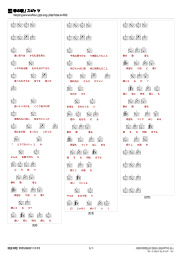
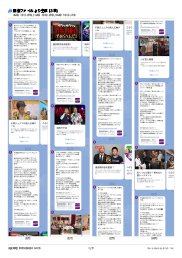
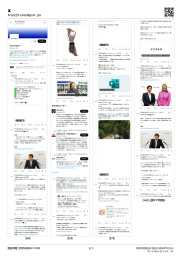
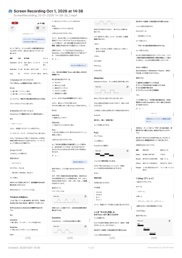
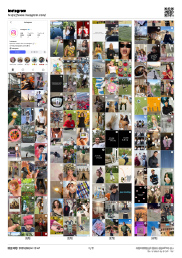
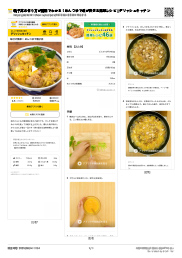
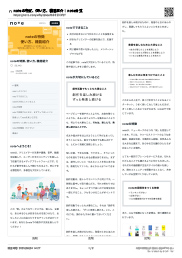
Capture full webpages, or just join screen recordings and screenshots from other apps. Even long screens become neat Letter-size PDFs.
Free to download - 10 free credits included
SitePrinter fits into all kinds of everyday moments
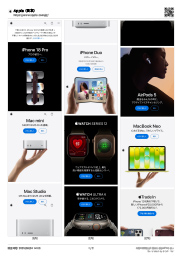
Turn webpages into PDFs easily on iPhone and iPad
Automatically scrolls and captures long webpages in full. Choose your column layout, then create, save, and share the PDF.
Just screen-record another app while you scroll. SitePrinter joins the recording into one tall image and turns it into a PDF - handy for X timelines, chat histories, and lesson pages in learning apps.
Combine up to 30 screenshots or other images into a single PDF. Overlaps and fixed top and bottom bars are removed automatically, and you can review and adjust each seam.
For endless pages like X (Twitter). Captures while scrolling, and you can stop whenever you like to create the PDF.
Handles pages up to 250,000px long, processed efficiently without overloading memory. No page is too long to capture safely.
Tap ads, banners, and other unwanted elements to hide them individually before capturing - great for a cleaner capture of pages with lots of ads.
Supports multiple paper sizes such as Letter and Tabloid, plus portrait or landscape orientation. Headers show the title and URL, while footers show the date and page number automatically.
After capturing, or when creating from images or a screen recording, drag the top and bottom edges to trim away anything you don't need, keeping only the parts that matter.
Draw on your capture with a pen or highlighter using your finger. Circle or underline the important parts before creating your PDF.
Choose anywhere from 1 to 8 columns and fine-tune where each column breaks by hand, so headings and images never get awkwardly cut off.
Set the screen width to 1000-1600px and capture the page just as it appears on a PC.
One subscription covers every device signed in with the same Apple ID. All capturing and PDF generation happens on-device, so the pages you view and the PDFs you create never leave your device.
Get started for free
Prices shown are in USD and may vary slightly by region or over time due to exchange rate adjustments on the App Store. Please check the App Store listing for the exact current price.
SitePrinter works with most common webpages, including news sites, blogs, and online stores. Some pages with unusual structures may not convert correctly.
One credit is used each time you create a PDF. Capturing a webpage (taking the screenshots) and adjusting the layout, such as the number of columns or where columns break, are unlimited, so feel free to fine-tune everything before creating your PDF. With a subscription, no credits are used and you can create unlimited PDFs.
All capturing and PDF generation happens on your device, and generated PDFs are saved to your device. The webpages you view, the content you capture, and the PDFs you create are never sent externally. To help improve the app, feature usage data and crash reports are sent, but you can turn this off at any time with "Share Usage Data" in Settings.
The free plan includes 10 free credits. The subscription offers unlimited conversions, and extra credits can be purchased whenever you need them - there's no difference in features. Note that the subscription works across any device signed in with the same Apple ID (iPhone, iPad, Mac), while extra credits are only valid on the device where they were purchased. If you want to use SitePrinter across multiple devices, the subscription is the way to go.
Yes. SitePrinter supports both iPhone and iPad, and on Apple Silicon Macs it runs as a "Designed for iPad" app. With the same Apple ID, a single subscription covers iPhone, iPad, and Mac.
Yes, you can send a URL to SitePrinter from Safari's share menu. The page opens right away in the app's built-in browser, ready for you to capture.
Yes. You can log in inside the app's built-in browser just as you would in Safari, then capture the page. Your login details and cookies are never sent externally. You can also screen-record your usual social media app while scrolling and turn the recording into a PDF with "Create PDF from Screen Recording" - no need to log in within SitePrinter.
Yes. With "Create PDF from Screen Recording," you can screen-record another app while scrolling, and SitePrinter joins the recording into one image for your PDF. You can also take several screenshots and join them with "Create PDF from Images." All recordings and images are processed on your device.
Automatic joining may not work well in cases like these:
- You scrolled too fast while screen recording (content may be missing or duplicated)
- Screenshots don't overlap, or overlap too little
- Images of different sizes or orientations are mixed
- The page has many similar repeating rows, or videos and animations that keep moving
For screen recordings, scroll slowly and steadily, and pause for a second or two before stopping. For screenshots, take each one so it overlaps the previous one by about a third of the screen. Joins that may not have lined up are shown in orange on the "Check the Joins" screen, where you can drag the line to adjust them. You can also turn off "Auto-Align" and adjust them by hand.
Generated PDFs are stored on your device and always available from the app's history. You can also save or send them via the share menu to the Files app, cloud storage, email, and more.
Yes. Turn on "Also Save Full-Length Image" in Settings to save the whole page stitched into one tall image in addition to the PDF, so you can choose whichever format suits your needs.
Yes, SitePrinter supports multiple paper sizes including A4, Letter, and Tabloid, along with portrait or landscape orientation, so you can create a PDF layout that suits your needs.
SitePrinter is designed for personal viewing and archiving. Copyright in captured content belongs to the original website or author, so please do not distribute captured content to others or use it commercially beyond personal use.